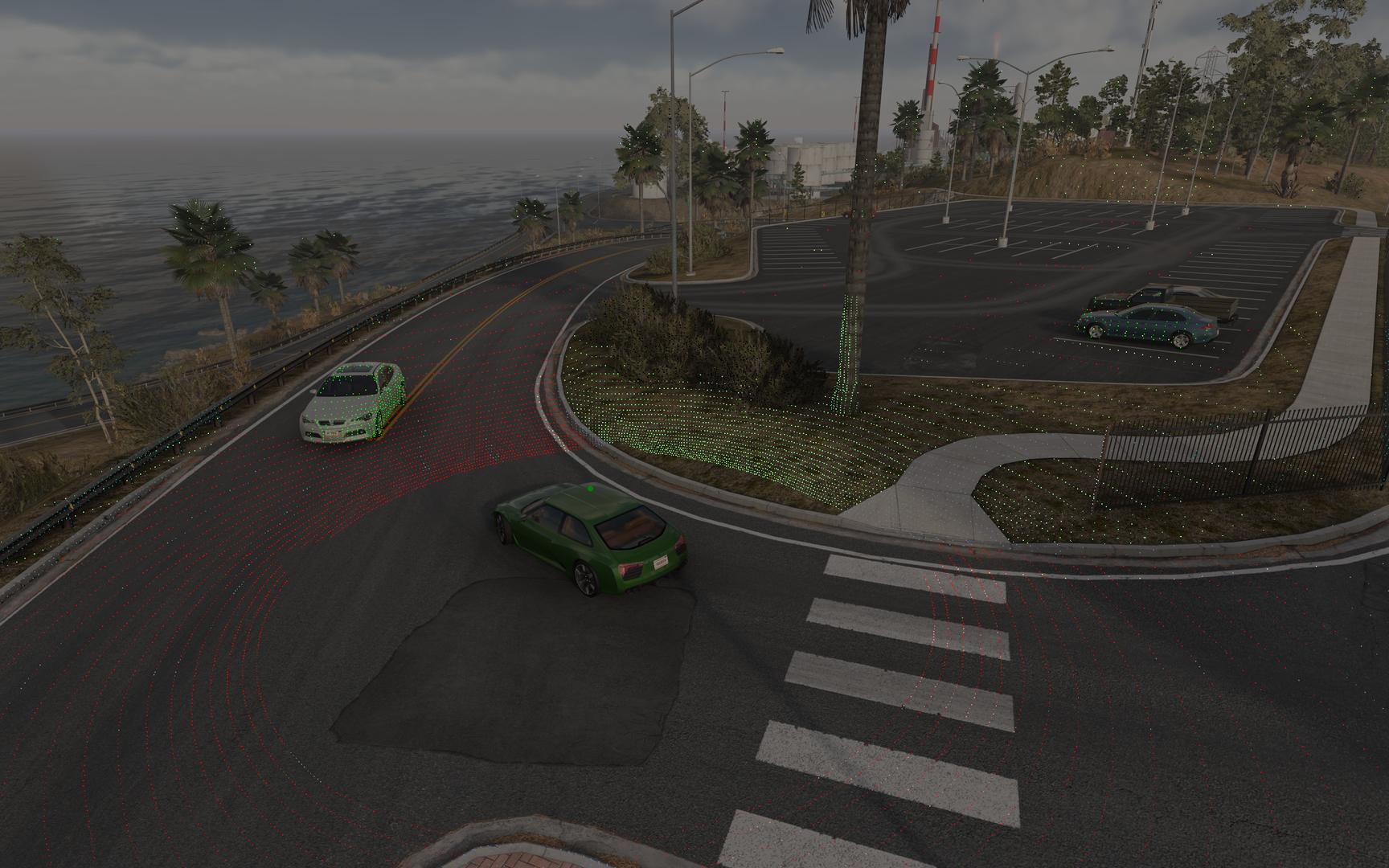
Our newest BeamNG.tech 0.40 update has arrived, setting a new standard for simulation data control and 3D rendering. The centerpiece of this release is BNGLink: a new, open-source toolset that delivers real-time synchronization between the BeamNG physics engine and leading 3D software like Blender and Unreal Engine. BNGLink effortlessly connects our simulation with professional visualization pipelines, supporting real-time mesh deformation, dynamic lighting, detailed vehicle interiors, and OpenUSD take recording.
Beyond BNGLink, this update brings comprehensive improvements to our sensor architecture, road network workflows, and API integrations. We’ve merged static and vehicle-attached sensor management into a single Sensor Configuration Editor, allowing users to dynamically tweak and monitor a wide range of parameters using strictly standardized coordinate spaces. Coupled with refined SUMO and OpenStreetMap imports, as well as powerful upgrades to BeamNGpy and the Vehicle Signal Logger, this release equips developers and researchers with unprecedented precision and reliability for automated driving simulations and headless environments.
We strongly encourage you to also check out the BeamNG.drive patch notes to get the full scope of what’s new, many of these updates directly benefit BeamNG.tech as well. You can read the BeamNG.drive patch notes here.
However in a nutshell, BeamNG.drive v0.40 is a massive update, headlined by the game officially launching on the PS5! It finally introduces local split-screen multiplayer, letting you play with up to 4 people on console or an insane 64 players on PC. We’ve also added fully simulated physical drivers (say hi to “Bob”) who actually add realistic weight to the cars and react to your crashes. To test out the new physics, there’s an awesome new European semi-truck called the Cherrier Percheron, packed with interactive parts and a bunch of new trailers.
On the technical side, the game looks and runs smoother than ever. Our devs added a full lineup of upscaling tech like DLSS and FSR, upgraded the lighting and reflections, and gave VR performance a nice boost. They also cleaned up the menus, improved rally mode handling, and polished up major maps like West Coast, USA and Italy. Plus, the game now runs natively on Windows on Arm devices.
Here’s a quick look at what’s new:
BNGLink
- New product in the BeamNG Tech ecosystem : BNGLink.
We now propose an open-source link with 3rd-party 3D rendering software.
For now, we provide compatibility with Blender and Unreal Engine. More information about compatibility is available on the Github project page. - Real-time link with the simulation
BNGLink allows you to synchronize your 3D scene with the BeamNG simulation in real-time, including 3D meshes with real-time deformation and detachable parts, materials, textures and much more.
- Lights, detailed interiors and dynamic textures
Lights are also dynamically synchronized with your 3D scenes, along with detailed interiors and dynamic elements (gauges, pedals, shifters, etc.). When turning your headlights on, the dashboard lights inside of the vehicle will also turn on, like in the simulation.
Dynamic textures such as license plates changes and digital dashboards are also available at a low refresh rate. A higher refresh rate mode is available at the cost of noticeably reduced performance in the simulation.
- OpenUSD Importer/Exporter
In addition to the real-time synchronization, BNGLink also allows you to record takes in OpenUSD format and import them again in your 3rd-party software. For now, they are imported as a keyframed animation in Blender and as Level Sequence in Unreal Engine.
Note that the default importer available in 3rd-party software will not be 100% compatible with our custom OpenUSD-based format. Only the BNGLink importers released in the Github page will be able to correctly process BeamNG takes.
- Integrated User Interface
BNGLink features its own integrated UI, both in BeamNG.tech and as 3rd-party software plugins/addons. No coding ability is necessary to use it.
More details about usage and instructions are available on the Github project page.


World Editor
- Road Network Import/Exporter
- Added OpenStreetMap and SUMO import to the Tech Road Network Import/Exporter.
Both use the same placement options as the OpenDRIVE import, so the workflow stays the same.
- SUMO export geometry cleanup
The exported network loads more cleanly in netconvert, with fewer stray stub edges. - Map export and headless runs
Added map export and a terrain fallback for headless use. Imports now finish in headless runs the same way as in the editor.
- Added OpenStreetMap and SUMO import to the Tech Road Network Import/Exporter.
- The Terrain and Road Importer
- Fixed terrain heightmap saving: imported height changes now mark the terrain as dirty, so they are included when saving the level.
So shaped terrain survives a save and reload.
- Fixed terrain heightmap saving: imported height changes now mark the terrain as dirty, so they are included when saving the level.
- Vehicle Signal Logger & Cosimulation
- Extra signal groups
Added GForces, Damage and Time signal groups to the Vehicle Signal Logger and cosimulation. - Per-part damage signals
Added damage signals per vehicle part to the Vehicle Signal Logger and cosimulation. - Bidirectional driver signals
Added recording of bidirectional driver signals as internal values in the Vehicle Signal Logger. - Physics-frequency API
Addedbe:getPhysicsFrequency(). It returns the physics rate in Hz (2000 by default;-physicsfpschanges it). Useful to turn step counts into seconds or sampling rates. - Vehicle Signal Logger sampling
Improved Vehicle Signal Logger setup: sampling can now be set with plain seconds/Hz values (frequencySteps). Added loading of a config CSV to reuse an existing signal selection. - Signal-list UI conflicts
Fixed duplicate ImGui ids in the Vehicle Signal Logger and cosimulation signal lists, where controls in one list affected another. Removed the duplicate save/load buttons. - Clearer signal names
Signal names now show their axis, coordinate system and unit, likevehicleMidFrontBumperX- Lateral - (world Coord.) - meters. Ranges moved into a hover note, which is also saved in the config file. You can see what each signal means without guessing. - Kinematics signal mapping
Fixed which message slot each COG, bumper and axle signal is read from in co-simulation. Those signals were missing before, or carried the value of a different signal.
- Extra signal groups
- Sensor Configuration Editor
- Merged the Map Sensor Editor
Static (map) sensors and vehicle-attached sensors are now placed and edited in the Sensor Configuration Editor.
- Improved sensor previews
Previews and selection behave more predictably.- Previews now stay linked to their sensor
Before, a preview could switch to a different sensor when sensors were added or removed. - Clicking a preview selects its sensor
The sensor shown in a preview window becomes the edited sensor when the window is clicked. - Camera preview gizmo follows the selection
The “Show gizmo” checkbox now only applies to the selected sensor. - Properties window closes for live sensors
Selecting a live sensor closes the properties window.
- Previews now stay linked to their sensor
- Fixed removed sensors not being fully cleaned up
Removing a sensor in the editor now fully removes it from the simulation.
- Merged the Map Sensor Editor


ROS2
- GE teardown on destroy
Fixed ROS2 GE teardown: nodes belonging to a vehicle are now cleaned up when that vehicle is destroyed. An orphaned node can now be restarted reliably. - Editor docking ImGui
Fixed the ROS2 Editor breaking its ImGui stack when docked as an inactive tab. The tool now keeps a valid context while its tab is not focused. - ROS 2 Editor explains why it cannot load
Opening the ROS 2 Editor after a sandboxed start no longer fails silently. The window now always opens and shows what is missing: a startup notice to source the ROS 2 environment and restart with -disable-sandbox, a clearer message when the ROS 2 library or one of its dependencies cannot be found, and initialization failures shown in the window.

Sensors
- More sensor settings can be read and changed after creation
Most sensor settings can now be read back, and many can be changed while the sensor is running.- Camera
Read the up vector, resolution, horizontal and vertical field of view, and near/far planes. Change the resolution, horizontal field of view and near/far planes. - LiDAR
Read the up vector. Read and change the vertical resolution, frequency and maximum distance. Change the direction and up vector. - Radar and Ultrasonic
Read the up vector. Change the position, direction and up vector. Ultrasonic sensors can also report the beam radius at a given distance. - GPS, Advanced IMU, Ideal RADAR, Mesh, Powertrain and Roads sensors
Read the requested update time. GPS and Advanced IMU can also report whether they are visualised, and Advanced IMU whether it uses gravity.
- Camera
- Camera exposure can be read and changed after creation
Auto exposure can be turned on or off on a running camera, and a fixed exposure value set or read back.
- Sensor position and orientation: coordinate spaces
Applies to camera, LiDAR, radar and ultrasonic sensors. Positions and orientations now use one consistent set of rules when sensors are created, changed and read back.- Position when configuring
The position of a vehicle-attached sensor is always relative to the vehicle, in the vehicle’s own coordinates. The position of a static sensor is always in world space. Changing the position later follows the same rule. A world-space position can only be given to a static sensor; for an attached sensor it is rejected with an error. - Direction and up when configuring
Direction and up vectors are relative to the vehicle by default. Setting “direction in world space” when creating the sensor makes them world-space instead. Changing the direction or up vector later uses the same space the sensor was created with. - Reading the position
By default the position is the sensor’s current world position, as before. The position the sensor was configured with can now also be read. - Reading the direction and up vector
The direction and up vector are now reported in the space they were configured in. For sensors using the default vehicle-relative directions, this is the configured vehicle-relative vector. Before, the direction was always the current world-space direction. Scripts that need the world-space direction of a vehicle-attached sensor have to convert it.
- Position when configuring
- Complete first reading on creation
Cameras and LiDAR with annotations, and radar, now return a complete reading straight after creation. Before, the first reading could be empty or incomplete until the sensor had updated once. - Vehicle state sensor uses the common sensor frame
The direction and up vectors of the vehicle state sensor now come from the vehicle rotation, matching the frame used by the other sensors. - Consistent default sensor parameters
Default sensor parameters now match between the editor, the Lua API and the engine. - Deprecated sensor Lua functions
Old sensor Lua names still work but log a warning.- Per-sensor request functions
UsesendVluaExtensionRequest/collectVluaRequestinstead ofsendGPSRequest,sendAdvancedIMURequest,sendPowertrainRequest,sendIdealRADARRequest,sendRoadsSensorRequest,sendMeshRequestand theircollect*versions. - Sensor frame field
third
Userightinstead.
- Per-sensor request functions
- Camera horizontal field of view
Setting it after creation took the value as radians instead of degrees, which gave a very different field of view and aspect ratio from the one requested. - Rendering after removing ultrasonic sensors
The game view no longer renders incorrectly after the last ultrasonic sensor is removed. - LiDAR point cloud visualisation
Fixed point cloud not being visualised with the Direct3D 12 API.
- Radar after re-creating sensors
Radar sensors work correctly when all radars are removed and new ones are created. - LiDAR log errors and warnings
Using LiDAR sensors no longer fills the log with errors and warnings.


Lua API
- Added Lua API to control the C++ version of the ROS2 Integration
Lua functions are now available to control the bridge loading, per-vehicle ROS2 nodes, sensors configuration and activation, etc. Full functions list and usage is available on the Github project page - Script AI path recording
Fixed path recording not starting, because two recorders shared one handler and the wrong one won. Added recordSpeed, so a recording can store speeds instead of time, matching the Script AI editor file format.
BeamNGpy
-
BeamNGpy road-network importing routing
Road-network imports from BeamNGpy now go through the Tech handlers, so editor and Python share one import path. OpenDRIVE imports go into Road Architect; SUMO and OpenStreetMap imports go into the Road Network Import/Exporter. The old local parsing code was removed. -
Spawn control arguments
Added theauto_enterargument toBeamNGpy.vehicles.spawnandScenario.add_vehicle, to control vehicle spawn/camera behavior. A spawned vehicle no longer automatically becomes the player vehicle; the camera stays with the current one. -
Added BeamNGpy API to control the C++ version of the ROS2 Integration
Python functions are now available to control the bridge loading, per-vehicle ROS2 nodes, sensors configuration and activation, etc. Full functions list and usage is available on the Github project page -
Physics rate
Addedsettings.get_physics_frequency()— the physics rate in Hz (2000 by default). Use it to turn logging steps into real time. -
Road textures on import
Fixed imported roads having no road surface. You can also pass your own material. -
Editor unsaved changes
Addededitor.is_dirty()andeditor.discard_changes(). The editor’s save popup used to block level loads in headless runs, because nothing could answer it. -
Script AI path recording
Fixed path recording not starting: two recorders shared one handler, and the wrong one won. Added recordSpeed (Lua) and record_speed (BeamNGpy), so recorded points store a speed in m/s instead of a timestamp.vehicle.ai.start_recording(record_speed=True)... drive the route ...vehicle.ai.stop_recording('my_path.json')Recordings now match the ScriptAI Editor file format, and the path is driven at the recorded speeds instead of on the recording clock.
-
Sensors
- New getters and setters
Read and change the sensor settings listed under BeamNG.tech. - Camera exposure control
Newauto_exposureandmanual_exposurearguments on Camera, and the methodsget_is_auto_exposure/set_auto_exposureandget_manual_exposure/set_manual_exposure. - Sensor position and orientation: coordinate spaces
Follows the BeamNG.tech rules- ‘pos’ and ‘set_position’
posis relative to the vehicle for attached sensors and in world space for static sensors(is_static=True).set_position(pos, world_space=False)follows the same rule.world_space=Trueis only accepted for static sensors. - ‘dir’, ‘up’, ‘setdirection’, and ‘setup’
Relative to the vehicle by default. Withis_dir_world_space=Truethey are in world space.is_dir_world_spaceno longer affectspos. - ‘getposition(worldspace=True)’
Returns the current world position by default, as before.world_space=Falsereturns the configuredpos. - ‘getdirection’ and ‘getup’
Now return the vector in the space it was configured in. With the defaultis_dir_world_space=False, this is the configured vehicle-relative vector, not the current world direction.
- ‘pos’ and ‘set_position’
- New getters and setters
-
Connection
- Socket timeouts are enforced
ATimeoutErrorduring send or receive is now raised. Before, it triggered a silent reconnect and retry, which could hang well past the timeout. - ‘BeamNGpy.close()’ no longer hangs
It sends the quit request without waiting for a reply, waits up to 10 seconds, then kills the process if it is still running.
- Socket timeouts are enforced
User Interface
- NEW: External View UI app
Added a HUD app that shows a web page or an image inside the game: a website, a page from a local server on localhost, or an image from the game’s file system. Each app has its own URL and an Image or Page mode. Several apps can be placed at once.
